> ## Documentation Index
> Fetch the complete documentation index at: https://docs.drivly.dev/llms.txt
> Use this file to discover all available pages before exploring further.
# Connecting Providers
> Learn how to use Drivly Connect.
export const StoryBoard = ({children}) => ;
export const CustomInfo = ({children}) => ;
export const HeroContent = ({children, withGrid}) =>
{withGrid &&
}
{children}
;
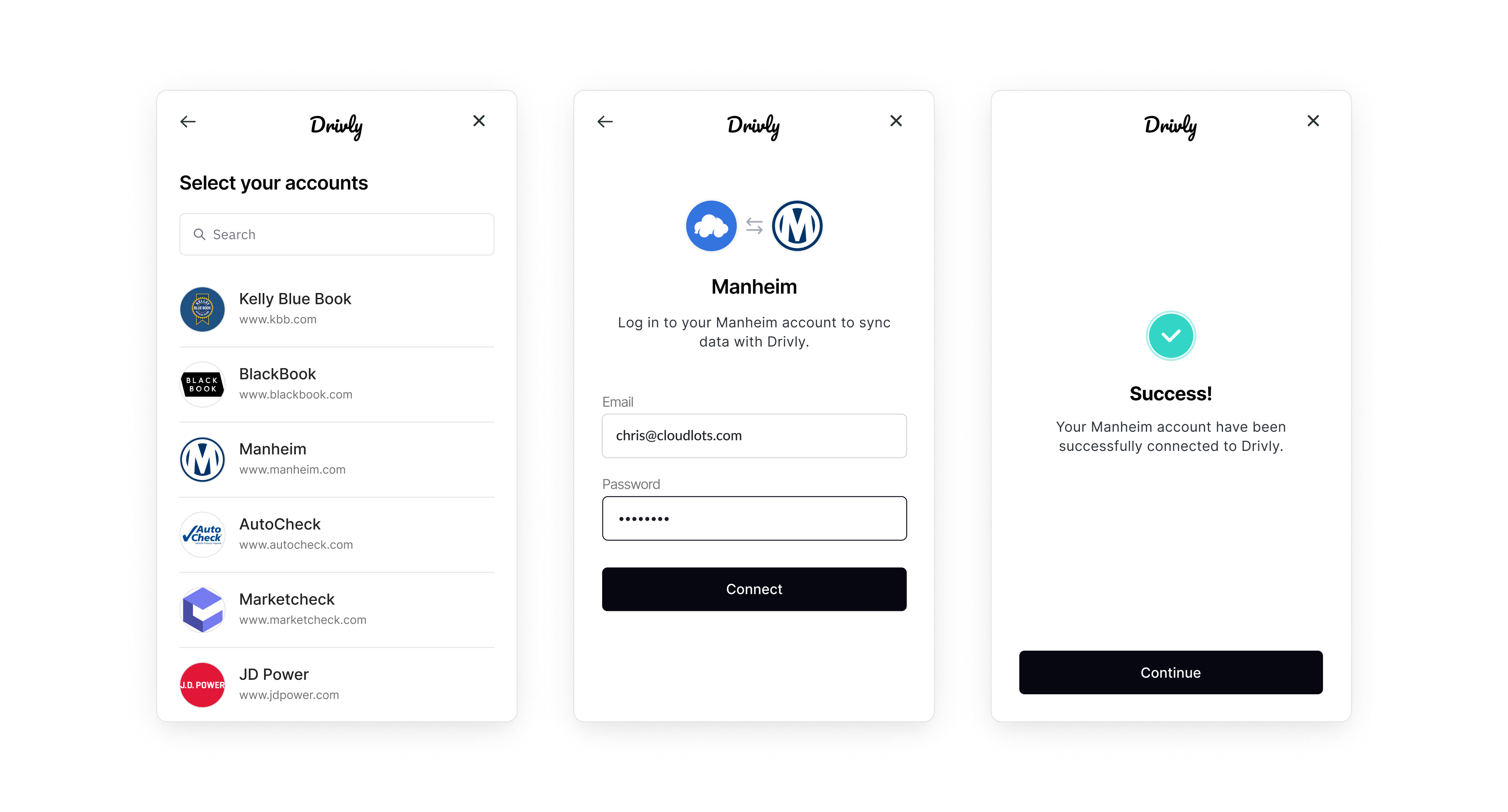 Before you can get started with this guide, you'll need to [sign up](https://www.driv.ly/signup/) for a Drivly account – it takes about 1 minute!
Once you have an account, launch Drivly Connect – you'll be asked to agree to our privacy terms and permissions.
* **Read privacy disclosures** - Drivly Connect discloses data privacy practices right from the start, so you know where and how your data will be used.
* **Confirm permissions** - Drivly Connect displays the granular permissions needed to access the requested data. Drivly only shares and syncs data that has been approved.
* **Authenticate access** - Drivly Connect prompts your customer to enter their credentials and grant you access to requested data. Drivly Connect will only succeed if the user grants Drivly’s systems access, if applicable.
Users simply enter the login credentials associated with their accounts. Before you can make API requests to Drivly, you will need to link your service providers. It’s a simple 3-step process:
1. Select a data or service provider
2. Sign in
3. Give consent
***
## Connecting Providers
In this guide, we'll follow an example scenario on how to use Connect to get comprehensive details about a vehicles condition and history.
Chris purchased a 2022 Hyundai `KMHL24JJ5NA045583` ... explain the issues he faced with damage
disclosures and between CarFax and AutoCheck and how Drivly's `VIN Decode API` solves this problem
head on.
To complete this scenario, we'll be:
1. Showing you how to use Connect with a Drivly API
2. Connecting vehicle history data providers: [Carfax](/connect/providers/carfax) and [AutoCheck](/connect/providers/autocheck)
3. Etc ...
Before you can get started with this guide, you'll need to [sign up](https://www.driv.ly/signup/) for a Drivly account – it takes about 1 minute!
Once you have an account, launch Drivly Connect – you'll be asked to agree to our privacy terms and permissions.
* **Read privacy disclosures** - Drivly Connect discloses data privacy practices right from the start, so you know where and how your data will be used.
* **Confirm permissions** - Drivly Connect displays the granular permissions needed to access the requested data. Drivly only shares and syncs data that has been approved.
* **Authenticate access** - Drivly Connect prompts your customer to enter their credentials and grant you access to requested data. Drivly Connect will only succeed if the user grants Drivly’s systems access, if applicable.
Users simply enter the login credentials associated with their accounts. Before you can make API requests to Drivly, you will need to link your service providers. It’s a simple 3-step process:
1. Select a data or service provider
2. Sign in
3. Give consent
***
## Connecting Providers
In this guide, we'll follow an example scenario on how to use Connect to get comprehensive details about a vehicles condition and history.
Chris purchased a 2022 Hyundai `KMHL24JJ5NA045583` ... explain the issues he faced with damage
disclosures and between CarFax and AutoCheck and how Drivly's `VIN Decode API` solves this problem
head on.
To complete this scenario, we'll be:
1. Showing you how to use Connect with a Drivly API
2. Connecting vehicle history data providers: [Carfax](/connect/providers/carfax) and [AutoCheck](/connect/providers/autocheck)
3. Etc ...
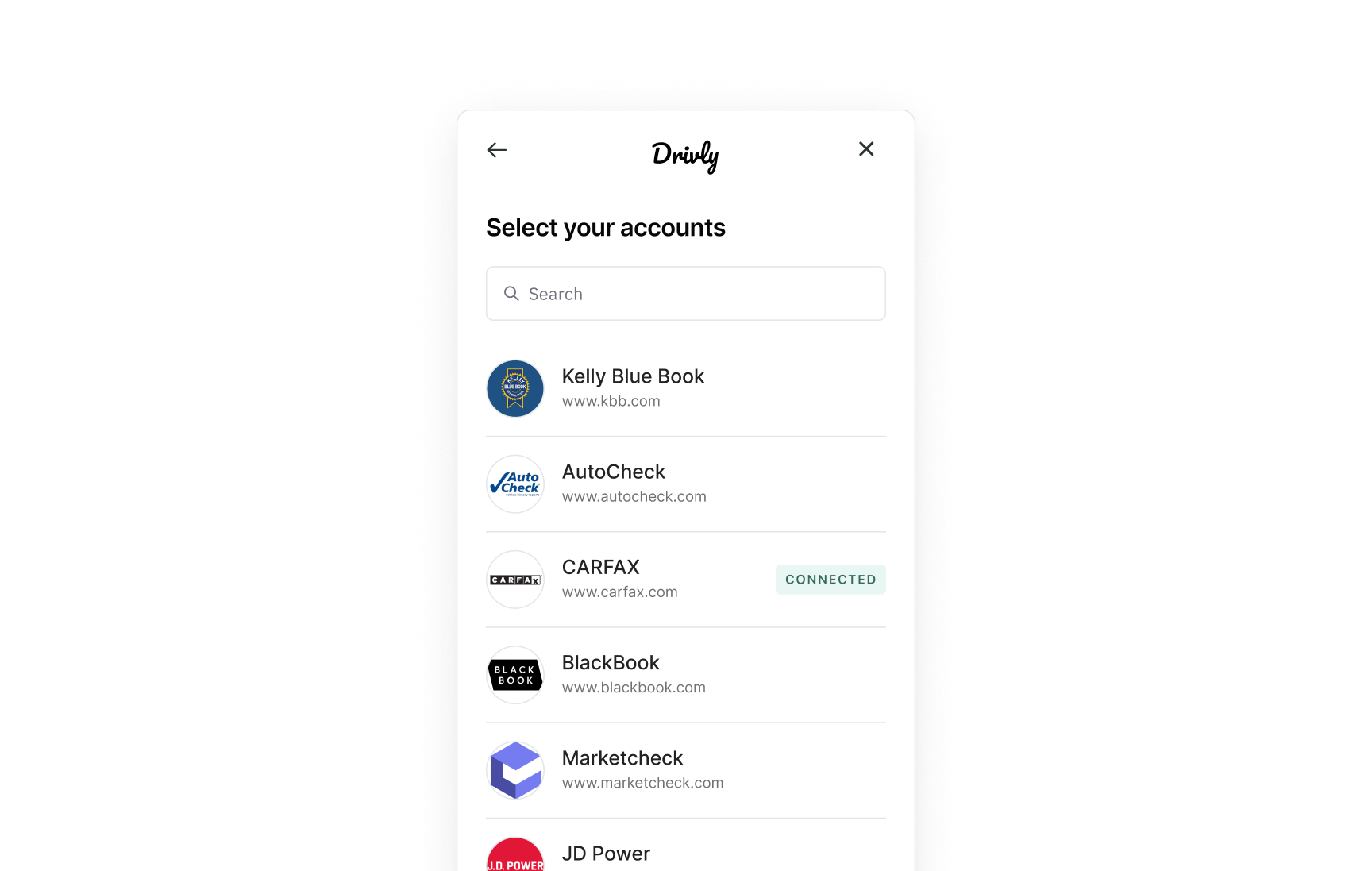 In this scenaorio, Chris already has a `Carfax` account connected.
Explain with Carfax gives him and what's next...
```json theme={null}
"lastOdometer": 93153,
"estimatedOdometer": 93153,
"salvage": false,
"totalLoss": false,
"lastTitleState": "FL",
"vehicleHistory": [
"clean",
],
```
In this scenaorio, Chris already has a `Carfax` account connected.
Explain with Carfax gives him and what's next...
```json theme={null}
"lastOdometer": 93153,
"estimatedOdometer": 93153,
"salvage": false,
"totalLoss": false,
"lastTitleState": "FL",
"vehicleHistory": [
"clean",
],
```
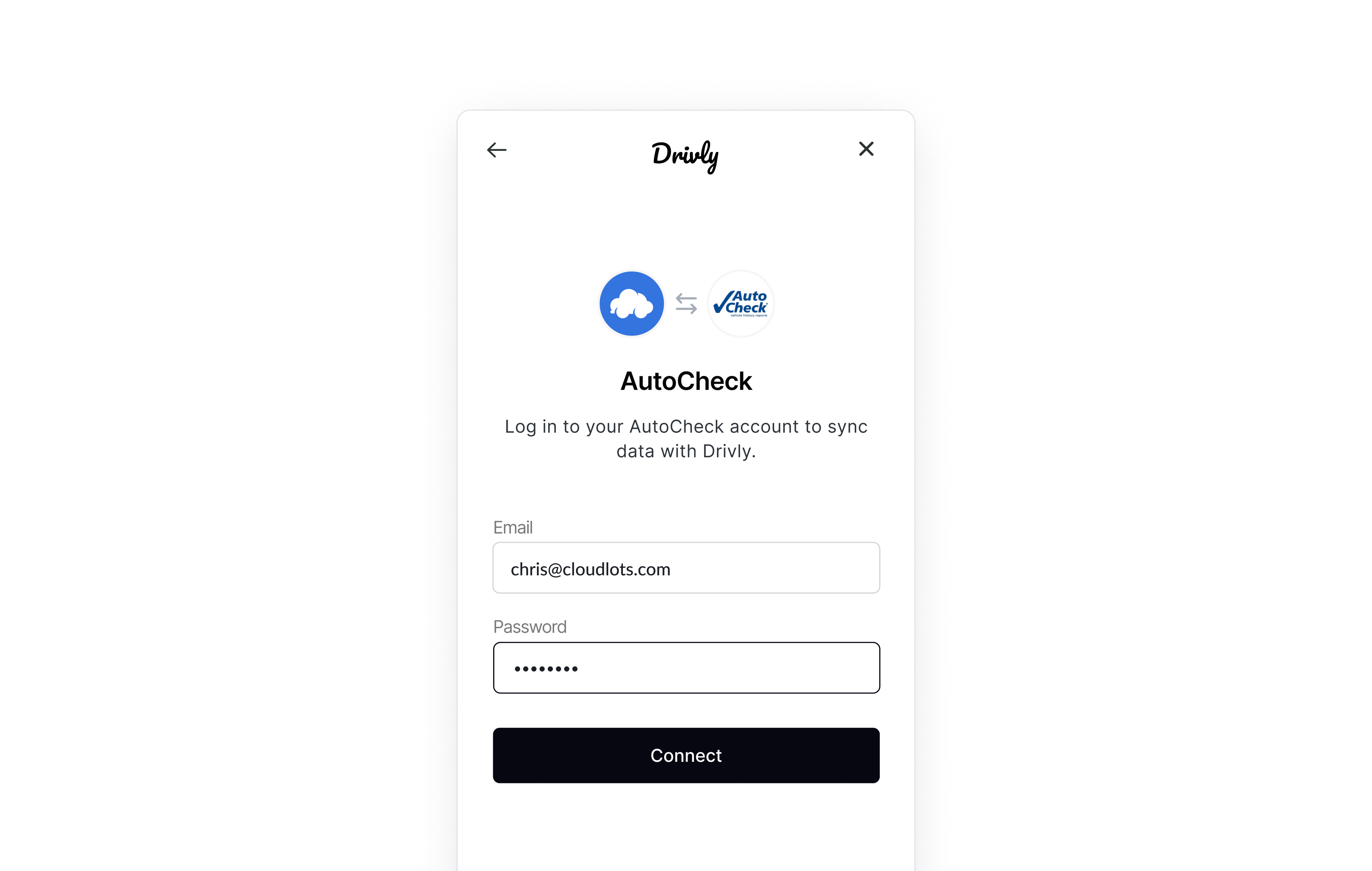 Chris selects [AutoCheck](/connect/providers/autocheck) from the [provider list](/connect/integrations) and prompts him to enter his credentials for CloudLots. This will grant Drivly access to requested data from AutoCheck so Chris can use the `Enhanced VIN Decode API`.
Drivly Connect will only succeed if the user grants Drivly’s systems access, if applicable.
Chris selects [AutoCheck](/connect/providers/autocheck) from the [provider list](/connect/integrations) and prompts him to enter his credentials for CloudLots. This will grant Drivly access to requested data from AutoCheck so Chris can use the `Enhanced VIN Decode API`.
Drivly Connect will only succeed if the user grants Drivly’s systems access, if applicable.
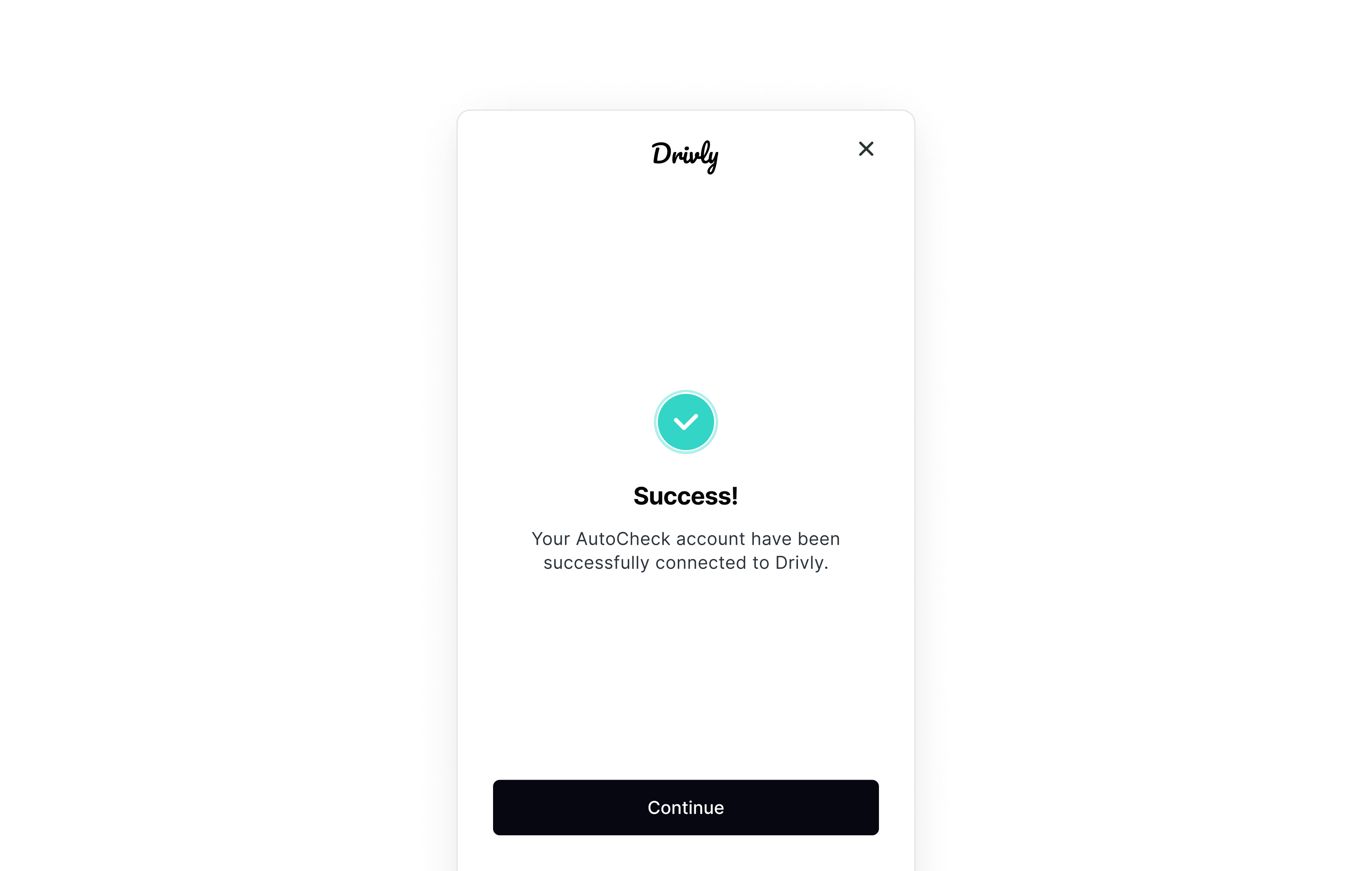 That's it! Upon successful authentication, you will be redirected back to your application.
Once the connection is established, you will receive a Drivly access token and can call the Drivly API platform.
Below you can see an example response from Drivly's `Enhanced VIN Decode API`:
```json theme={null}
"lastOdometer": 93153,
"estimatedOdometer": 93153,
"salvage": true,
"totalLoss": false,
"lastTitleState": "FL",
"priceHistory": [
[
"2023-06-07",
36999
],
[
"2023-06-07",
36499
]
],
"confidence": 0.99,
"vehicleHistory": "1-damage"
```
That's it! Upon successful authentication, you will be redirected back to your application.
Once the connection is established, you will receive a Drivly access token and can call the Drivly API platform.
Below you can see an example response from Drivly's `Enhanced VIN Decode API`:
```json theme={null}
"lastOdometer": 93153,
"estimatedOdometer": 93153,
"salvage": true,
"totalLoss": false,
"lastTitleState": "FL",
"priceHistory": [
[
"2023-06-07",
36999
],
[
"2023-06-07",
36499
]
],
"confidence": 0.99,
"vehicleHistory": "1-damage"
```